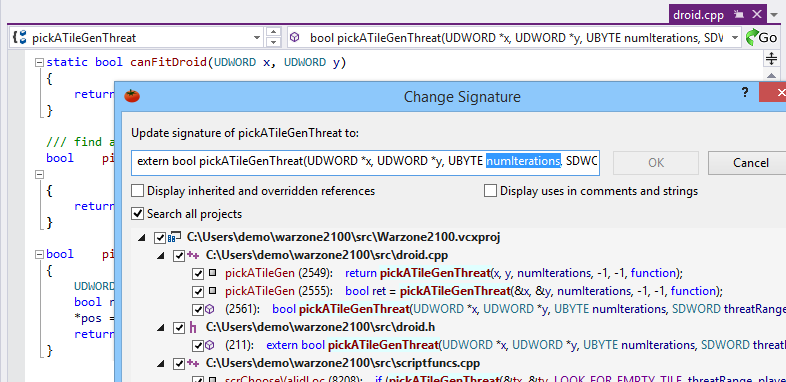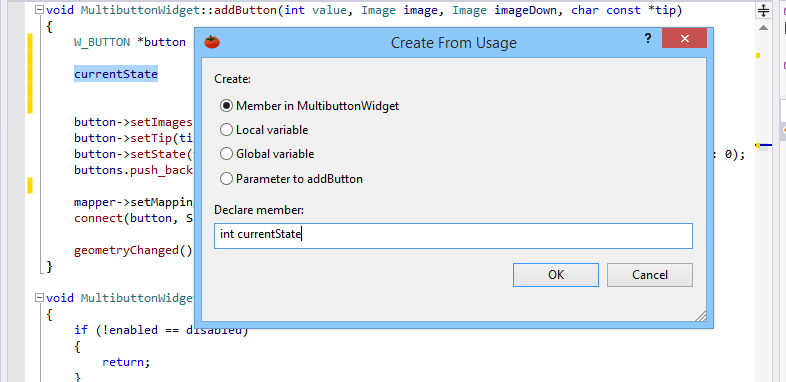
Suggestion Lists

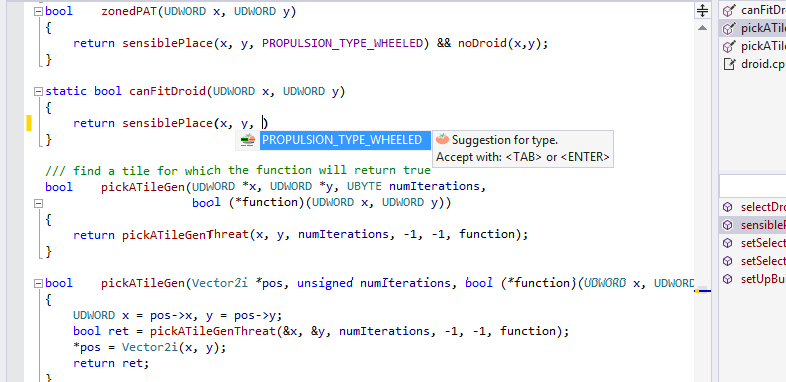
Accelerate typing with suggestion lists that appear as you type. One character is typically enough to make Visual Assist X offer a suggestion. Type more characters to refine the suggestions. Recently-typed and nearby symbols are likely suggestions.


Accept a suggestion to skip most of your typing.

Press Ctrl+Space any time a suggestion list is visible to open a completion listbox with all possible completions, not just the suggested ones.


Suggestion lists are available for most programming languages, including C/C++, C# and Visual Basic.

Suggested Bits of Code

You can configure Visual Assist X to include bits of code in your suggestions to help reduce the typing of repetitious code. These bits of code are typically taken from nearby lines.


Unlike other suggestion lists, bits of code appear prior to the typing of the first character of a symbol. You must accept these suggestions with Tab or Enter; you cannot accept them with other characters. If you type a character, the bit of code disappears and you see a normal suggestion list.

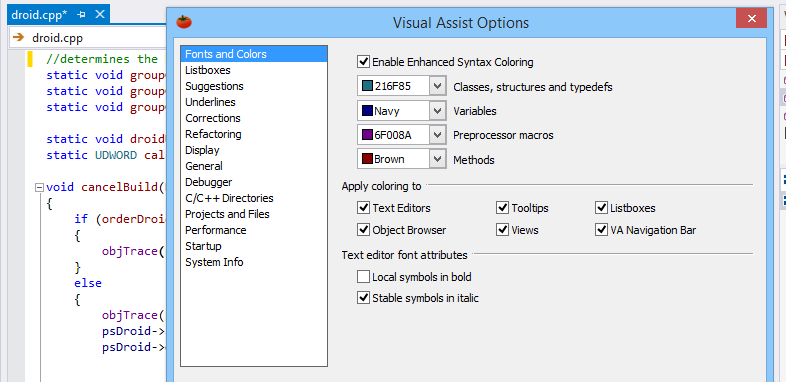
Enable suggested bits of code in the options dialog.

Suggested VA Snippets

VA Snippets have precedence over all other possible suggestions. If you have a VA Snippet to expand T to TRUE, typing T opens a suggestion list with the entry for TRUE selected.


Typing a letter beyond the shortcut of a VA Snippet might make a different suggestion list appear. The new list may or may not contain the expanded VA Snippet.


Enable suggested VA Snippets in the options dialog.

Suggested Parameter Lists

Methods and functions in C/C++ are typically declared in headers; parameters accepted by the method are listed with the declaration. When you write the implementation of the method and type a left parenthesis, Visual Assist X suggests the parameters from the declaration.


A suggested parameter list appears only when typing at global scope, not within another method or function. In the latter case, Visual Assist X assumes you are referencing the object.

You must accept parameter list suggestions with Tab or Enter; you cannot accept them with other characters. Press ESC to force the suggestion list to close if you want to type Tab or Enter without accepting the suggestion.

Acronyms

Acronyms work in listboxes and when typing new code. When typing new code, use Acronyms to prod Visual Assist X into opening a suggestion list with the symbol you want.


Shorthand

Shorthand also works in listboxes and when typing new code.


No Suggestion Highlighted when Defining a Symbol

Suggestion lists appear when defining a symbol, but no suggestion is highlighted. You must press Down Arrow to highlight the first selection prior to accepting it. This exception to normal highlighting is by design; you can insert tabs and newlines while typing definitions without stopping to clear suggestion lists.


Suggestions Within Symbols

Suggestions appear when typing in front of or within symbols. Accepting a suggestion when in front of or within a symbol causes the suggestion to be inserted.


If the symbol to the right is completely unknown, e.g. it is a remnant of typing or editing, it is removed.


The symbol to the right is untouched if it forms a valid symbol name, in case your intent is to use this symbol after typing more at the cursor position (e.g., a left parenthesis to use the symbol as a parameter, or a carriage return to begin a new line with the symbol as an l-value.)


Miscellaneous

Aside from enabling the feature in the options dialog for Visual Assist X, there is no setup required to use suggestion lists.

Press Ctrl+Space any time a suggestion list is open to make a completion listbox appear.

To maintain consistency with Visual Studio listbox behavior, the suggestion list is not closed after typing a complete symbol if its name is also a substring or acronym for another symbol.

Suggestion lists grow larger when backspacing.