The VA Agent window is where VA Intelligence shows its work. When you run Change Code with AI, the agent works on your open solution: it reads, searches, and edits code through Visual Assist’s own tools, answers your questions about the code, and proposes changes. Its response and each proposed change appear here, so you can review every change before it reaches your code.
Open the VA Agent Window
Before you start, make sure VA Intelligence is enabled and installed. Then, go to Extensions > VAssistX > Tools > VA Agent.
VA Agent does not run without an open solution.
The VA Agent window opens and shows the agent’s response.
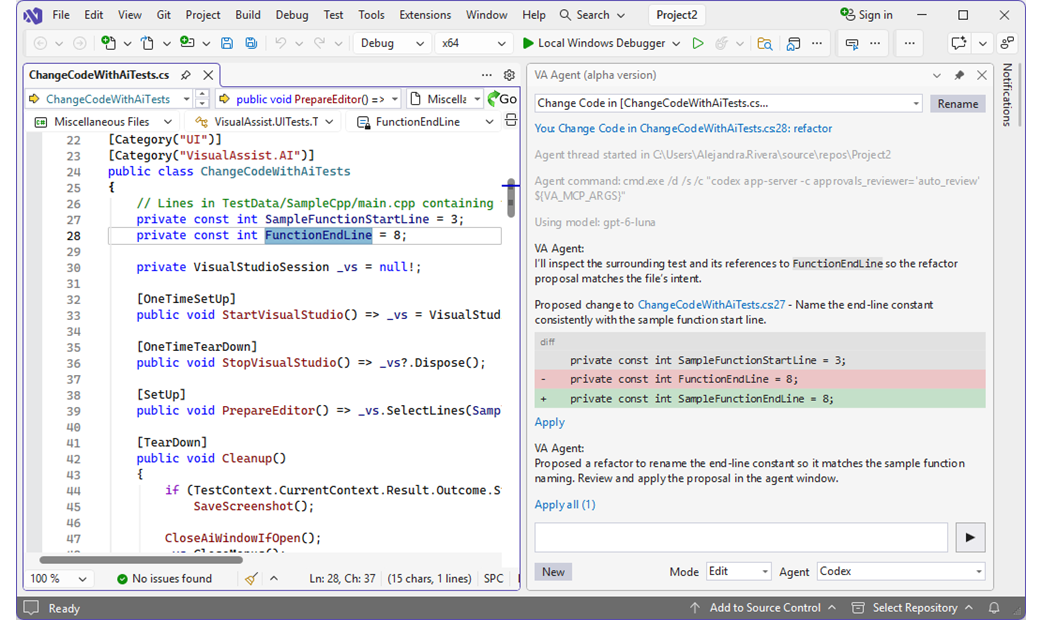
The toolbar wraps in narrow windows, so every control stays visible.
In the VA Agent window, you can perform the following operations:
- Choose an agent, a model, an effort level, and a mode.
- Review and apply proposed changes.
- Manage conversations: open, rename, pin, mark as unread, delete, or start new ones.
Agent Picker
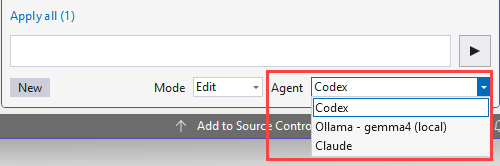
Use the Agent picker to choose one of the following agents:
- Codex (default): uses OpenAI’s Codex agent. Requires Codex CLI installed and signed in with an OpenAI account.
- Ollama - gemma4 (local): runs locally on your computer using the Gemma model installed with VA Intelligence. No sign-in is needed.
- Claude Code: uses Anthropic’s Claude agent. Requires Claude Code CLI installed and signed in with an Anthropic account.
For setup steps, see AI agent setup.
Codex and Claude Code send your code to their providers (OpenAI and Anthropic) for processing. The local agent keeps your code on your computer.
After you send the first message in a conversation, the Agent picker and the Context length picker are greyed out. A tooltip explains why: switching either one would lose the conversation’s context.
To use a different agent or context length, click New or switch to an empty conversation, then choose the agent or context length you want before you send your first message.
Mode Picker
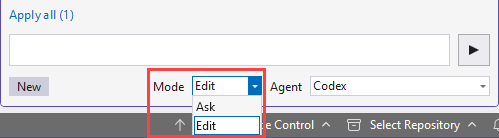
Use the Mode picker to choose what the agent is allowed to do.
- Edits allowed: the agent can edit files and run commands in the solution directory.
- Ask Mode: for questions and planning. The agent is steered toward answering your questions and its editing tools are limited. Ask Mode is not a read-only guarantee.
Files the Agent Can Change
VA Agent’s write and edit tools, and the changes it proposes in Change Code, are limited to:
- The solution directory.
- The project directories.
- Any file you already have open in an editor tab.
VA Agent never writes inside a .git folder or a worktree’s .git file.
A write to any other path is refused. The agent is told to ask you to open the file, or to describe the change instead.
Reading and searching reach a wider set of files: the same locations, plus the folders of files that your projects reference.
Model, Effort Level, and Usage Indicator
Use the Model picker to choose a model and the Effort level picker to choose an effort level. Both pickers are available for Claude and Codex CLIs installed on your computer.
- The model is saved with each conversation.
- The effort level is remembered per model.
- New, /clear, and Change Code keep both the model and the effort level.
- A new conversation starts on the model last used with that agent.
- You can switch the model in the middle of a conversation. The conversation keeps its context.
- The newest Codex models need a recent Codex CLI. If your Codex CLI is older, an error asks you to upgrade it.
- Only the newest model of each family is listed.
- Codex models marked for retirement are left out.
- VA refreshes the lists in the background at startup, when you turn on VA Intelligence, and after you sign in from the VA Agent window.
- If a refresh fails or a CLI is signed out, VA keeps the previous list.
- If a conversation uses a model that is no longer listed, the model stays at the bottom of the picker until you send a reply with a different model. New conversations cannot select it.
The usage indicator is a ring after the Model and Effort level pickers. It shows how much of the selected agent's weekly plan limit is used.
- Click the ring.
- Review one row for each limit window. Each row shows the window name, Resets in …, and the percentage used with a bar.
- Check Updated … ago at the bottom to see how recent the values are.
- The ring and bars turn red at 90%.
Claude usage limits:
- 5-hour limit.
- Weekly limit for all models.
- Per-model weekly limit (only if your plan has one).
Codex usage limits:
- The windows plan reports.
- You can also run
/status to see your plan limits.
The values come from the CLIs. VA does not contact any Anthropic or OpenAI service to get them.
The ring is hidden for agents without plan limits:
- Gemma 4 (local).
- API keys.
- Signed-out agents.
Review and Apply Proposed Changes
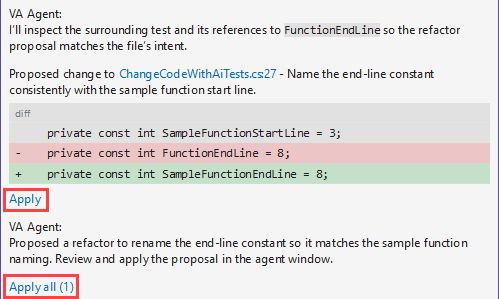
When you run Change Code with AI, the proposed changes stream into the VA Agent window as diff blocks.
Each diff block shows a before-and-after comparison so you can inspect the proposed code before deciding what to keep.
- Click Apply on a diff block to apply that change.
- Click Apply all to apply all changes at once.
No changes are applied to your code until you click Apply. Diff blocks you do not apply leave your code unchanged.
Open Previous Conversations
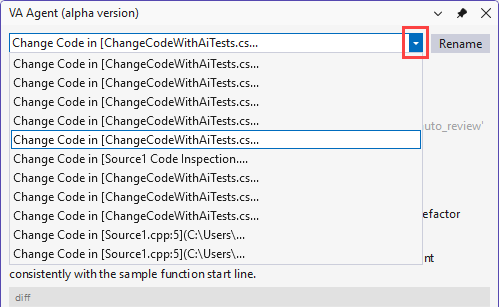
The VA Agent window keeps a history of your previous conversations, so you can return to an earlier request and continue where you left off.
- On the top left side of the VA Agent window, expand the history control.
- Select a conversation to open it.
The history shows only the conversations that belong to the solution you currently have open. To find a conversation from another solution, open that solution first.
Opening a previous conversation does not apply any changes.
Create New Conversations
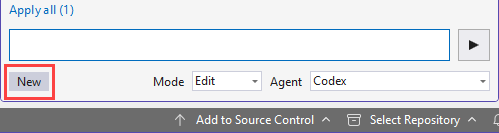
Click New to start a new conversation. It starts the new conversation right away, without asking for confirmation.
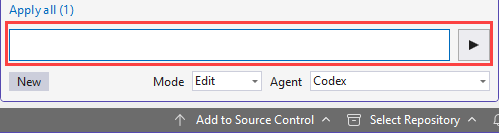
You can also type /new in the message box and send it. /clear does the same.
Rename Conversations
- On the top right side of the VA Agent window, click the Rename icon.
- Type the new name.
- Click Ok to save the changes.

Use the Conversation Menu
The conversation menu holds actions for a conversation. To open it, do either of the following:
- Click the "..." (More actions) button beside Rename at the top of the window.
- Right-click the conversation list.
The menu contains these commands:
- Pin
- Mark as Unread
- Delete
Delete Conversations
- Open the history control in the VA Agent window.
- Hover over a conversation. A ✕ button appears
- Click ✕ and confirm. You get the same confirmation as Delete... in the conversation menu.
The list stays open, so you can delete several conversations in a row.
- A running conversation has no ✕ button. Wait for it to finish, or stop it first.
- If you delete the active conversation, the VA Agent window switches to a neighboring one.
Conversations and Solutions
Conversations belong to the solution that is open in Visual Studio. Each solution has its own saved conversations, even when two solutions share a folder.
Switch to another solution
- Wait for any running response to finish. Switching solutions stops it.
- Open the other solution in the same Visual Studio window. You do not need to restart.
- Open the history control in the VA Agent window. It shows a new, empty conversation plus the saved conversations of that solution.
- Select a saved conversation to continue it, or start typing in the new one.
To return to your earlier conversations, reopen the original solution. Switching away never deletes conversations.
Check Status
Type /status in the message box and send it to see how much of the context window the agent is using and whether your CPU or GPU is doing the work.
Set the Context Length (local agent)
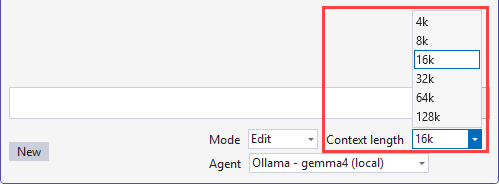
The Context length setting controls the size of the context window for the local agent (Ollama - gemma4). A longer context lets the agent consider more code and conversation at once, but it uses more memory.
- Range: 4K to 128K
- Default: 16K
Use VA’s Code Tools from Other AI Tools
The VA’s MCP server lets other AI tools, such as the Codex CLI, Claude Code, and opencode, use VA’s code tools.
Each one needs one stdio MCP server named va that runs VaAgent_Mcp\VaAgent_Mcp.exe from the VA's installation directory.
For the Codex CLI, open ~/.codex/config.toml and add [mcp_servers.va] table with command and args = ['--stdio'].
For Claude Code, run this command claude mcp add va -- <path> --stdio.
For opencode, open opencode.json and add a local entry under mcp.
- VA no longer adds this entry for you.
- The tools can reach VA only while Visual Studio with VA is running, and only after VA Agent has handled at least one request in that session.
Recommended Use
- Start in Ask mode when you are exploring unfamiliar code or want to discuss an approach before changing anything.
- Review each diff block before applying it, and apply changes one at a time when the result needs closer inspection.
- Rename conversations you plan to return to, so you can find them quickly.
- Treat the output as proposed code, not automatically trusted code.
- You can run several conversations at the same time.
- Before you open a different solution, let any running response finish. Switching solutions stops it.
To review the Basic Workflow, see Change Code with AI.