VA Snippets with shortcuts let you quickly insert commonly used fragments of code in your source. These VA Snippets appear in completion lists as you type. If you have multiple VA Snippets with the same shortcut, all are included in the completion list when you type the shortcut.
What Is a Snippet Shortcut?
A snippet shortcut is a short, predefined trigger that lets developers quickly insert commonly used code into their source files. In Visual Assist, snippet shortcuts can be assigned to VA Snippets so that typing a shortcut displays the corresponding code snippet in the completion list. This makes it easier to insert frequently used code without repeatedly writing the same code structure manually.
A snippet shortcut can also expand into more than a simple piece of static code. Depending on how the VA Snippet is configured, the expanded code can include context-specific values such as a GUID, date, or time. This allows developers to create reusable snippets that speed up common coding tasks.
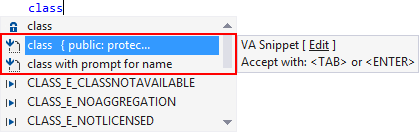
In the following example, two VA Snippets appear when shortcut "class" is typed.
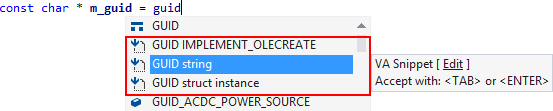
The expanded code of a VA Snippet can include context-specific values such as a GUID, date, and time.
After you accept a VA Snippet, Visual Assist inserts expanded code in place of the shortcut.

How to Use Snippet Shortcuts in Visual Assist
Using a snippet shortcut in Visual Assist allows developers to quickly access predefined code fragments while typing. When you enter a shortcut, matching VA Snippets can appear in the completion list, allowing you to select the code you need without manually entering the entire fragment.
You can create different snippet shortcuts for commonly used code patterns and assign unique shortcuts to make them easier to find. Because shortcuts are case sensitive, the shortcut you type must match the configured shortcut for the VA Snippet to appear in the completion list.
Enabling VA Snippets with Shortcuts
Including VA Snippets in completion lists requires enabling of the feature in the options dialog of Visual Assist.

Disabling Built-In Snippets
Visual Studio 2012 and newer
If you use VA Snippets, you can disable built-in snippets to avoid redundant entries in completion listboxes. In the IDE, disable:
Tools | Options | Text Editor | C/C++ | Advanced | Intellisense | Disable Member List Code Snippets
Title
VA Snippets with shortcuts may or may not include titles. If a title exists, the title appears in the completion list when the shortcut is typed.
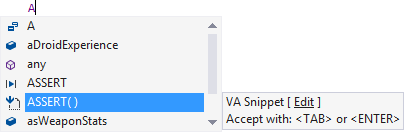
If a VA Snippet does not have a title, the first part of the code to be expanded appears.

Typically, VA Snippets with shortcuts that expand to very short fragments of code do not have titles.
VA Snippets that share a common shortcut should have unique titles, making it easier to differentiate entries in a completion listbox.
If duplicate shortcut-title pairs exist, only one of the associated VA Snippets will appear in a completion list.
Case Sensitivity
Shortcuts for VA Snippets are case sensitive. A VA Snippet with shortcut lowercase 'w' will not appear in a completion list if you type uppercase 'W'. If you want 'w' and 'W' to expand to the same code, you must create two VA Snippets.